Help & Documentation
Everything you need to know to use SpokenEdit effectively.
Getting Started
Quick Start Guide
Get to your first review in 4 steps: Create account → Create studio → Upload project with audio → Invite team.
1. Create an Account
Register at spokenedit.com/register with your name, email address, and a password. You will receive a confirmation email — click the link to activate your account.
After registration, you automatically start on the Free Plan with 250 MB of storage and one project.
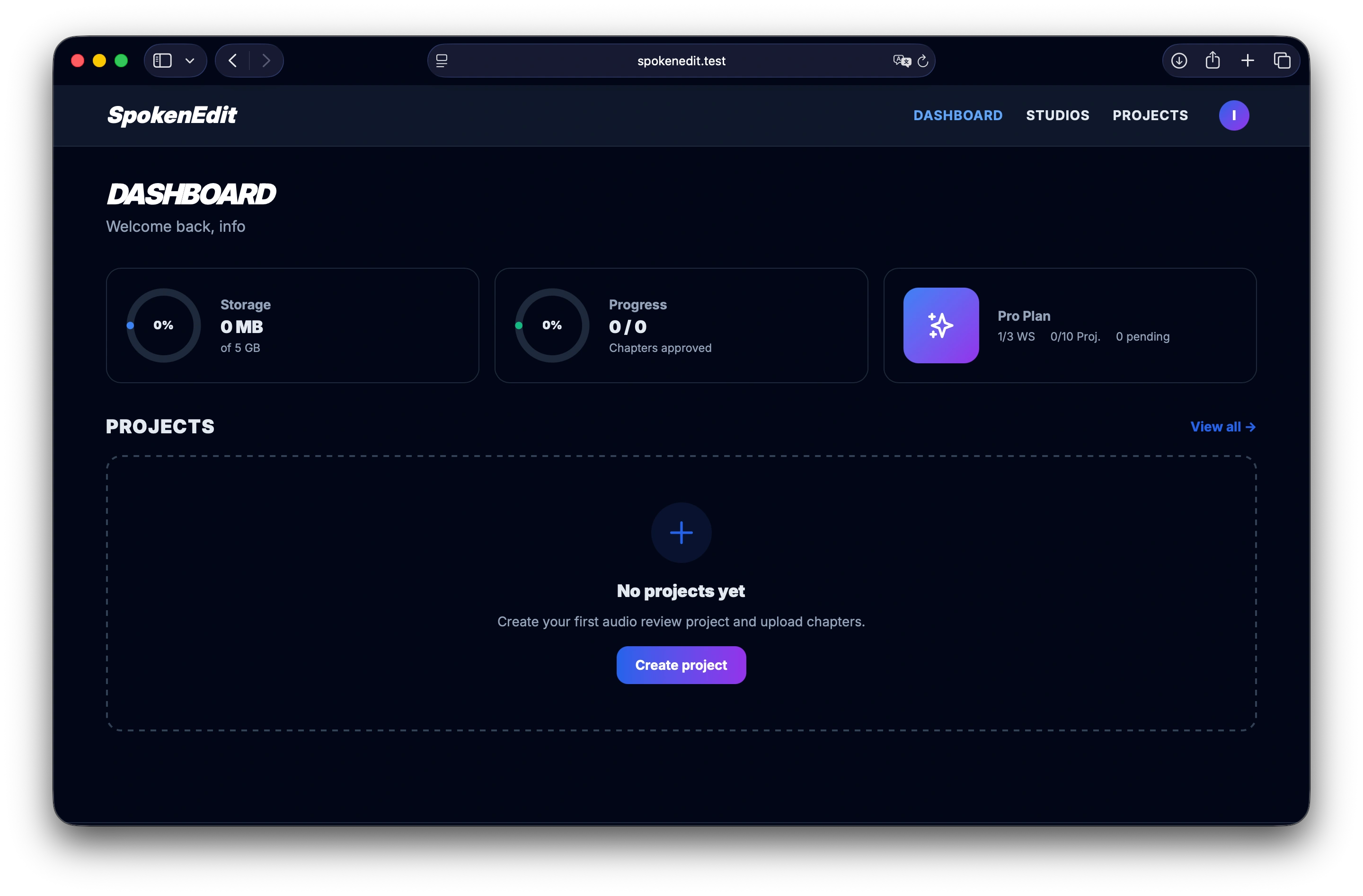
2. Create a Studio
A Studio is your team area. Here you manage projects and invite members. Think of a studio as your publishing house, production company, or team.
Go to Studios → New Studio and enter a name. You are automatically the Owner with full permissions.
3. Create a Project & Upload Audio
Within your studio, you create Projects — e.g., an audiobook, a podcast, or a voice recording. Each project can have any number of Chapters.
- Go to Projects → New Project
- Enter a title and select your studio
- In the project, click Upload Audio
- Select one or more MP3 files
- Chapters are automatically created based on the file names
Note: Currently only MP3 files are supported. Convert WAV, FLAC, or other formats before uploading.
4. Invite Team
Invite members to your studio or directly to a project:
- Studio Members: Studio → Members → Enter email address → Assign role
- Project Members: Project → Members → Enter email address → Assign role
- External Guests: Project → Review Links → Create new link (no account required!)
Invited people receive an email notification with a direct link.
The Review Process
The review process is the heart of SpokenEdit. Here is how it works:
Placing Markers
Markers pinpoint precise locations in the audio that need to be edited. Simply click on the waveform at the desired position and choose a marker type:
| Code | Type | Description |
|---|---|---|
| S | Smack | Mouth or lip smacking sound |
| V | Slip of tongue | Slip of tongue or misread |
| P | Pause | Unwanted or missing pause |
| T | Timing | Timing issue (too fast/slow) |
| A | Breath | Audible breath |
| L | Volume | Volume too high/low |
| R | Noise | Background noise/static |
| D | Double | Word or sentence spoken twice |
| B | Emphasis | Wrong emphasis/pronunciation |
| ? | Custom Comment | Free-text comment (max. 2000 characters) |
You can add a comment to each marker to describe the issue in more detail. Markers are displayed as colored dots on the timeline.
Status System
Each reviewer has their own review status per chapter:
- In Progress: You are listening and placing markers
- Finish Review: You signal that you are done. Your markers are “frozen” — you can no longer edit them.
- Reopen Review: If you want to add something, you can reopen your review at any time.
This way, the team can see at a glance who has finished the review (e.g., “2 of 3 reviewers done”).
Approval (Four-Eyes Principle)
Approval is the final step in the review process. It follows the four-eyes principle:
- Only Owners, Team Managers, and Project Leads can approve chapters
- Editors cannot approve their own chapters — a second person must confirm
- Approvals are tracked per audio version (new version = new review cycle)
Tip: In the dashboard, you can see at a glance how many chapters have been approved and which ones are still awaiting review.
Version System
You can upload multiple audio versions per chapter. When you revise a recording, upload the new version — SpokenEdit automatically creates Version 2, 3, 4... and archives the previous ones.
Markers and approvals are each tied to a specific version. A new version starts a new review cycle.
Read-Along Manuscript
You can upload a PDF manuscript per project so reviewers can follow along with the text while listening. The manuscript is displayed directly below the audio player in the review view.
- Upload on the project detail page (max. 50 MB, PDF only)
- Reviewers and guests with a review link can open the manuscript
- The manuscript is stored encrypted and cannot be downloaded
- An existing manuscript can be replaced or deleted at any time
Tip: In the review view, the “Manuscript” button appears next to the export button. Click it to open the PDF as a collapsible panel below the player.
Guest Access & Review Links
With review links, external people (authors, clients, editors) can review your project — without creating an account. A review link always covers the entire project including all chapters — you don't need to create a separate link for each chapter.
Create a Review Link
- Open your project
- Go to Review Links
- Click Create New Link
- Optional: Enter the guest's name and email
- Choose whether the guest may place markers and comment or only view
- Optional: Set an expiration date
Guest Permissions
| Permission | With Comment | View Only |
|---|---|---|
| Listen to audio | ✓ | ✓ |
| Place markers | ✓ | ✗ |
| Write comments | ✓ | ✗ |
| Delete markers (own) | ✓ | ✗ |
| Approve chapters | ✗ | ✗ |
| Upload audio | ✗ | ✗ |
Important: Review links can be revoked (deleted) at any time. The guest will immediately lose access.
Roles & Permissions
SpokenEdit distinguishes between Studio Roles (apply to the entire studio) and Project Roles (apply only within a project).
Studio Roles
| Role | Description |
|---|---|
| Owner | Full control over the studio. Creates projects, manages members and settings. Can delete the studio. |
| Team Manager | Manages day-to-day operations. Can create projects, invite members, and assign roles. Cannot delete the studio. |
| Studio Editor | Regular editor in the studio. Can upload audio and edit markers. Cannot create projects or manage members. |
| Studio Reviewer | Read access to all projects in the studio. Can listen, place markers and comment, but not edit — ideal for quality assurance or editors-in-chief. |
Project Roles
| Role | Description |
|---|---|
| Project Lead | Manages the project, members, and review links. Can approve chapters (four-eyes principle). Cannot delete the project. |
| Editor | Uploads audio, places and edits markers. Can mark markers as resolved. Cannot approve chapters. |
| Project Reviewer | Provides feedback on the project. Can listen, place markers and comment. Cannot mark markers as resolved and cannot approve chapters. |
Permissions Matrix
Overview of all permissions by role. Editor covers both Studio Editor and Project Editor (identical project-level permissions).
| Action | Owner | Team Mgr | Proj. Lead | Editor | Proj. Rev. | Studio Rev. | Guest |
|---|---|---|---|---|---|---|---|
| View projects | ✓ | ✓ | ✓ | ✓ | ✓ | ✓ | ✓ |
| Manage studio | ✓ | ✓ | ✗ | ✗ | ✗ | ✗ | ✗ |
| Create projects | ✓ | ✓ | ✗ | ✗ | ✗ | ✗ | ✗ |
| Manage members | ✓ | ✓ | ✓ | ✗ | ✗ | ✗ | ✗ |
| Upload audio | ✓ | ✓ | ✓ | ✓ | ✗ | ✗ | ✗ |
| Delete chapters/audio | ✓ | ✓ | ✓ | ✗ | ✗ | ✗ | ✗ |
| Place markers | ✓ | ✓ | ✓ | ✓ | ✓ | ✓ | * |
| Resolve markers | ✓ | ✓ | ✓ | ✓ | ✗ | ✗ | ✗ |
| Approve chapters | ✓ | ✓ | ✓ | ✗ | ✗ | ✗ | ✗ |
| Create review links | ✓ | ✓ | ✓ | ✓ | ✗ | ✗ | ✗ |
| Delete project | ✓ | ✓ | ✗ | ✗ | ✗ | ✗ | ✗ |
| Export (CSV/PDF/MIDI) | ✓ | ✓ | ✓ | ✓ | ✓ | ✓ | ✗ |
* Guest can place markers if the review link has the “Can place markers and comment” option enabled.
Storage & Plans
SpokenEdit offers different plans for different requirements:
| Free | Pro | Business | Event Ticket | |
|---|---|---|---|---|
| Storage | 250 MB | 3 GB | 20 GB | 10 GB |
| Studios | 1 | 3 | 10 | 1 |
| Projects | 1 (∞ chapters) | 10 | Unlimited | Unlimited |
| File Expiry | 14 Days | No Expiry* | No Expiry* | 30 Days |
| Duration | Unlimited | Unlimited | Unlimited | 30 Days |
* while your subscription is active
File Expiry on the Free Plan: Audio files are automatically deleted after 14 days. Back up your files locally before they expire. Upgrading to Pro or Business removes this restriction.
Event Ticket
The Event Ticket is a time-limited access for events, workshops, or courses. Everything you need for your project, no subscription required: 10 GB storage, full team features, and unlimited projects for 30 days. Expires automatically, no cancellation needed. After the 30-day period, the account is downgraded to the Free Plan.
The Event Ticket cannot be combined with an existing Pro or Business subscription. If you need more storage or projects, upgrading to the next higher plan is the best option.
Data Security & GDPR
Your Data is Safe
SpokenEdit is hosted in Germany and is fully GDPR compliant.
- Servers Located in Germany — All data is stored on German servers
- Self-hosted Analytics — Matomo on our own infrastructure, cookie-free, no data shared with third parties
- Local Fonts — All fonts are loaded locally
- Encrypted Connection — All data is transmitted via HTTPS/TLS encryption
- Password Security — Passwords are hashed with bcrypt and never stored in plain text
- Trash with Recovery — Deleted projects, chapters, and audio files can be restored for 7 days
- IP Anonymization — IP addresses in the activity log are automatically anonymized after 90 days
- Account Deletion — You can completely delete your account at any time (Settings → Delete Account)
Marker DAW Import
SpokenEdit exports your markers in various formats that you can import directly into your DAW. This allows you to place corrections at the exact positions in your timeline.
Tip: Export All Chapters
If you have all chapters of a project laid out linearly in your DAW, use the “All Chapters” mode in the export dropdown. Markers from all chapters will be exported with cumulative time offsets, so they land at the correct timeline positions.
Important: Check Sample Rate
Make sure the sample rate of your DAW project (e.g. 44.1 kHz or 48 kHz) matches the sample rate of the uploaded audio files. If the sample rates don't match, marker positions may shift slightly.
Cubase / Studio One / Nuendo
SpokenEdit exports a standard MIDI file (.mid) with markers as MIDI marker events.
Cubase
- Export the markers as MIDI: Cubase / Studio One / Nuendo
- In Cubase: File → Import → MIDI File…
- Select the downloaded .mid file
- Cubase will ask whether to create a new project — click No so the markers are loaded into your current project
- The markers will appear in the Marker Track at the correct time positions
Studio One
- Export the markers as MIDI: Cubase / Studio One / Nuendo
- Drag and drop the .mid file into your Studio One project
- Alternatively: Song → Import File… and select the .mid file
- The markers will appear as marker events in the timeline
Logic Pro
Logic Pro uses a special MIDI format for markers. SpokenEdit provides a dedicated export for this.
- Export the markers as MIDI: Logic Pro
- In Logic Pro: File → Import → MIDI File… (or ⌥⌘I)
- Select the downloaded .mid file
- The markers will appear in the Marker Lane above the timeline
Note: Make sure to use the Logic Pro export, not the standard MIDI export. Logic Pro interprets marker events differently than other DAWs.
REAPER
REAPER imports markers via a special text file (.txt) in Reaper region format.
- Export the markers as TXT: Reaper
- In REAPER: Open the Region/Marker Manager (⌘⇧M on Mac / Ctrl+Shift+M on Windows)
- Click the gear icon or right-click in the marker list
- Select Import… and open the downloaded .txt file
- The markers will appear as markers/regions in the timeline
CSV & PDF
In addition to DAW formats, you can also export markers as documents:
- CSV (Spreadsheet): For opening in Excel, Google Sheets, or Numbers. Contains time position, marker type, comment, and editor.
- PDF (Report): A printable report with all marker details — ideal for sending to voice actors or clients.
FAQ & Troubleshooting
Why are only MP3 files supported?
SpokenEdit currently supports MP3 files exclusively. This format offers the best balance of file size and compatibility for browser streaming.
WAV or FLAC files would be many times larger and would significantly slow down streaming. Simply convert your files to MP3 before uploading (recommended: 192-320 kbps).
What happens to deleted files and projects?
Deleted items are not permanently removed immediately but are moved to the Trash and can be restored within 7 days. Simply contact us by email.
After the 7-day period, the files are automatically and irreversibly deleted.
What happens when my plan expires or I cancel?
When your Event Ticket expires or you cancel your Pro or Business subscription, your account is automatically downgraded to the Free Plan. Your projects and data are preserved, but the Free Plan limits apply (250 MB, 1 project, 14-day file expiry).
My audio upload is failing. What can I do?
Possible causes and solutions:
- Wrong format: Only MP3 files are accepted
- Storage full: Check in the dashboard how much storage is still available
- File too large: Individual files should not exceed 500 MB
- Unstable connection: Large files require a stable internet connection
Can I export my markers?
Yes! SpokenEdit offers several export formats for your markers:
- MIDI: Importable into any DAW (Digital Audio Workstation)
- Logic Pro: Directly importable as Logic markers
- REAPER: As a REAPER marker file (.csv)
Go to the review view and click Export, then choose the desired format.
How can I export my data or delete my account?
Under Settings you will find two options:
- Export Data: Download all your data as a ZIP file (GDPR Art. 20 — Right to Data Portability)
- Delete Account: Permanently and irreversibly delete your account and all associated data (GDPR Art. 17 — Right to Erasure)
What is the difference between a project and a chapter?
A project is the container for your entire assignment (e.g. an audiobook or a podcast). Within a project you can upload as many chapters or audio files as you like. What's limited is not the number of files, but the number of different projects you can work on at the same time.
What happens when my storage is full?
When you reach your limit, you can continue working on existing projects and placing markers. To upload new audio files, you can either delete old projects or upgrade to a higher plan.
Can I add the Event Ticket to my existing Pro subscription?
The Event Ticket is a standalone solution for users without an ongoing subscription. It cannot be combined with an existing plan. If you're already on the Pro plan and need more projects or storage, upgrading to the Business plan is the best option.